원본 코드는 아래와 같다(길어서 접을글 처리)
%% PICMUS challenge: experiment, contrast-speckle test
%
% This example reads (or downloads if the data is not local) a
% dataset used in the <http://ieeexplore.ieee.org/document/7728908/ PICMUS challenge>
% and beamforms it with USTB's general beamformer.
% A 75 plane-wave sequence was recorded with a Verasonics Vantage 256 research
% scanner and a L11 probe (Verasonics Inc., Redmond, WA). The dataset was recorded on
% a CIRS Multi-Purpose Ultrasound Phantom (Model 040GSE) to estimate
% the method contrast and speckle statistics.
%
% _by Alfonso Rodriguez-Molares <alfonso.r.molares@ntnu.no>
%  and Olivier Bernard <olivier.bernard@insa-lyon.fr>_
%
%   $Last updated: 2017/09/15$

%% Getting the data
%
% We define the local path and the url where the data is stored

% data location
url='http://ustb.no/datasets/';             % if not found data will be downloaded from here
filename='PICMUS_experiment_contrast_speckle.uff';

% checks if the data is in your data path, and downloads it otherwise.
% The defaults data path is under USTB's folder, but you can change this
% by setting an environment variable with setenv(DATA_PATH,'the_path_you_want_to_use');
tools.download(filename, url, data_path);

%% What's inside?
%
% This dataset should contain the following structures:
% * *channel_data*,
% * *beamformed_data* and,
% * *scan*
%
% We can check it out with the *index* function
display=true;
content = uff.index([data_path filesep filename],'/',display);

%% Plotting beamformed_data
%
% We can read the *beamformed_data* object and plot it

b_data=uff.read_object([data_path filesep filename],'/beamformed_data');
b_data.plot();

%% Loading channel data & scan
%
% The file also contain channel_data and scan. We read it so we can
% replicate the beamformed image in the UFF file.

channel_data=uff.read_object([data_path filesep filename],'/channel_data');
scan=uff.read_object([data_path filesep filename],'/scan');

%% Beamforming
%
% We define a pipeline, and the corresponding transmit and apodization
% windows, and launch it.

pipe=pipeline();
pipe.channel_data=channel_data;
pipe.scan=scan;

% receive apodization
pipe.receive_apodization.window=uff.window.tukey50;
pipe.receive_apodization.f_number=1.7;

% transmit apodization
pipe.transmit_apodization.window=uff.window.tukey50;
pipe.transmit_apodization.f_number=1.7;

% launch beamforming
b_data_new=pipe.go({midprocess.das  postprocess.coherent_compounding});

%% Comparing results
%
% We plot both images side by side.

figure;
b_data.plot(subplot(1,2,1),'Original');
b_data_new.plot(subplot(1,2,2),'New');
set(gcf,'Position',[100   100   750   450])

b_data_new.plot()
중요한건 아래 코드부터이다.
channel_data=uff.read_object([data_path filesep filename],'/channel_data');
scan=uff.read_object([data_path filesep filename],'/scan');
해당 코드부터 데이터셋에 있는 raw데이터를 가져와서 시각화를 직접해보는 내용이다.
윗부분은 이미 잘 처리된 이미지를 가져오는것
여기서 제일 중요한 부분은 이 코드인 것 같다.
% receive apodization
pipe.receive_apodization.window=uff.window.tukey50;
pipe.receive_apodization.f_number=1.7;

% transmit apodization
pipe.transmit_apodization.window=uff.window.tukey50;
pipe.transmit_apodization.f_number=1.7;
Apodization:
초음파 소자(element)들이 신호를 주고받을 때, 모든 소자에 똑같은 크기의 에너지를 주는 것이 아니라 중앙은 강하게, 외곽은 약하게 가중치를 두는 기술
이유: side-lobe를 제거한다.
side-lobe: 송/수신기에 반사되어서 잡음과 비슷하게 나타나는 신호들, 필요한 신호는 main-lobe라고 한다.https://en.wikipedia.org/wiki/Sidelobes 통신공학 수업 때 배웠던거같은데
Tukey:
가중치 함수의 모양을 정하는 것이다.
Tueky Window: 사각형-코사인 중간의 형태
tukeyXX: XX값이 100에 가까울수록 코사인에 가까운 형태가 된다.
- tukey0(완전한 사각형)을 쓰면 해상도는 올라가지만 노이즈(side-lobe)가 심해지고
tukey100을 사용하면 노이즈는 줄어들지만 해상도가 떨어지는 trade-off관계이다.
따라서 중간값인 tukey50을 설정한것을 알수있다.
f_number = 1.7
초음파 빔의 집속력(얼마나 날카롭게 혹은 집중해서 쏠것인가)를 결정하는 수치이다.
광학카메라의 조리개와 비슷한 개념

값이 작으면 해상도가 좋아지지만 초점 영역을 벗어나면 화질이 흐려질 수 있다.
값이 크면 해상도가 떨어질수있지만 영상 전체적으로 화질이 균일해진다.
Receive, Transmit (수신 vs 송신)
- Transmit (송신): 초음파를 쏠 때 소자들을 어떻게 조절할 것인가.
- Receive (수신): 반사되어 돌아온 신호를 처리할 때 어떤 가중치를 줄 것인가.
실제로 tukey와 f_number를 변경해보자
f_number이 1.7그리고 3일때,
tukey값이 각각 25 50 75 일때를 비교해보는 코드를 짜보았다.
% 1. Standard (F1.7, T50)
pipe.receive_apodization.f_number = 1.7;
pipe.receive_apodization.window = uff.window.tukey50;
b_case1 = pipe.go({midprocess.das postprocess.coherent_compounding});
ax1 = subplot(2,2,1);
b_case1.plot(ax1, 'Standard (F:1.7, T:0.5)'); % ax1이라는 특정 칸에 그리라고 명시

% 2. Higher F-number (F3.0)
pipe.receive_apodization.f_number = 3.0;
pipe.receive_apodization.window = uff.window.tukey50;
b_case2 = pipe.go({midprocess.das postprocess.coherent_compounding});
ax2 = subplot(2,2,2);
b_case2.plot(ax2, 'Higher F-number (F:3.0)');

% 3. Tukey 25% (Sharp/Noisy)
pipe.receive_apodization.f_number = 1.7;
pipe.receive_apodization.window = uff.window.tukey25;
b_case3 = pipe.go({midprocess.das postprocess.coherent_compounding});
ax3 = subplot(2,2,3);
b_case3.plot(ax3, 'Tukey 25%');

% 4. Tukey 75% (Clean/Blurry)
pipe.receive_apodization.window = uff.window.tukey75;
b_case4 = pipe.go({midprocess.das postprocess.coherent_compounding});
ax4 = subplot(2,2,4);
b_case4.plot(ax4, 'Tukey 75%');
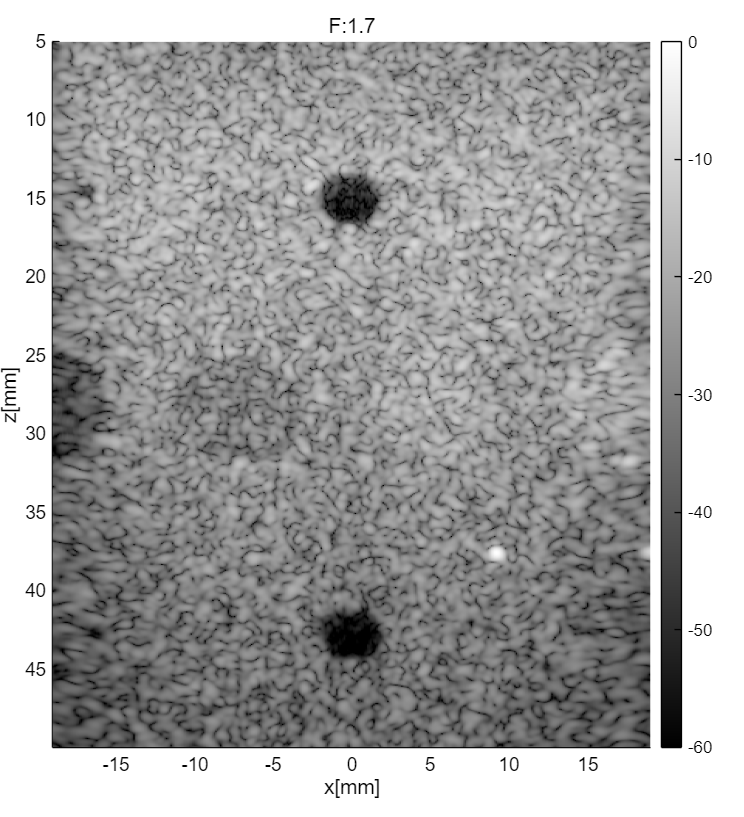
검정색 부근이 더 까맣게 보일수록 더 선명한 이미지라고 볼수있다. 1.7이 제일 선명해 보이는걸 알수있다.
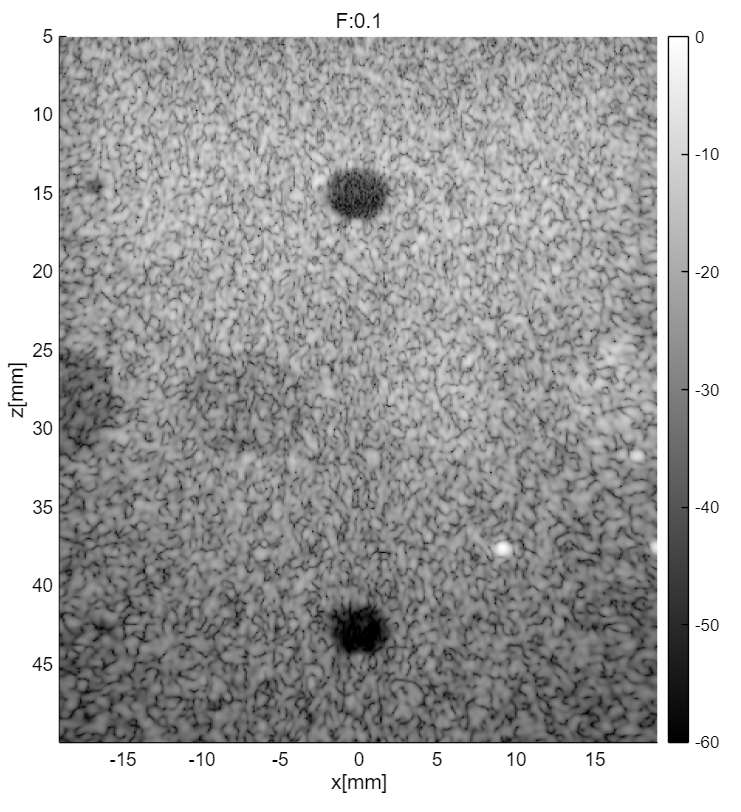


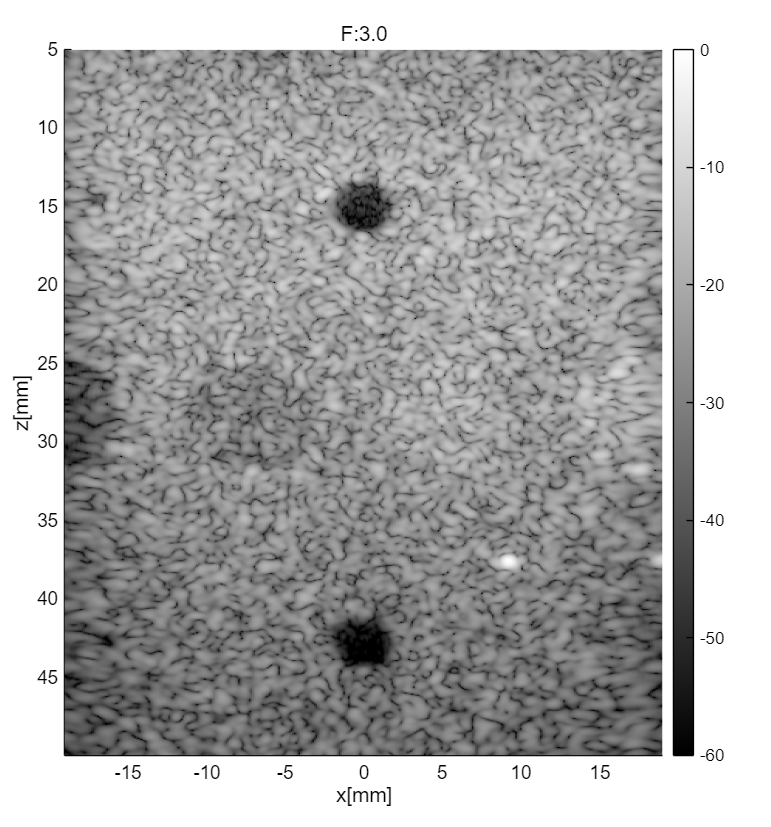
1.7 에서 3.0의 숫자 차이가 큰거같아 2.0도 따로 출력해보았다. 직접 출력해서 비교해보면 2.0 의 검은 반점이 더 작고 덜 까만것을 확인할수있다.

이번에는 Tukey값을 변경해보겠다.
% 1. Tukey 25
pipe.receive_apodization.f_number = 1.7;
pipe.receive_apodization.window = uff.window.tukey25;
b_case1 = pipe.go({midprocess.das postprocess.coherent_compounding});
% figure(...) 를 지우고 아래처럼 바로 plot 합니다.
b_case1.plot([], 'Tukey 25');

% 2. Tukey 50
pipe.receive_apodization.window = uff.window.tukey50;
b_case2 = pipe.go({midprocess.das postprocess.coherent_compounding});
b_case2.plot([], 'Tukey 50');

% 3. Tukey 75
pipe.receive_apodization.window = uff.window.tukey75;
b_case3 = pipe.go({midprocess.das postprocess.coherent_compounding});
b_case3.plot([], 'Tueky 75');


f_number 는 1.7로 고정하고 여러 Tukey를 적용해본 결과이다.
'이직로그 > DSP' 카테고리의 다른 글
| Audio DSP 프로젝트: 이펙터 시뮬레이터 만들기 (0) | 2026.03.27 |
|---|---|
| Audio DSP: 일렉기타 이펙터 만들기 1 (1) | 2026.03.17 |
| USTB 스터디 2 - 데이터셋 튜토리얼 따라가기 (0) | 2026.01.26 |
| USTB 스터디 1 (0) | 2026.01.26 |
| 빔포밍 시뮬레이션 10 - 원본 먼저 해볼걸 (0) | 2025.12.02 |